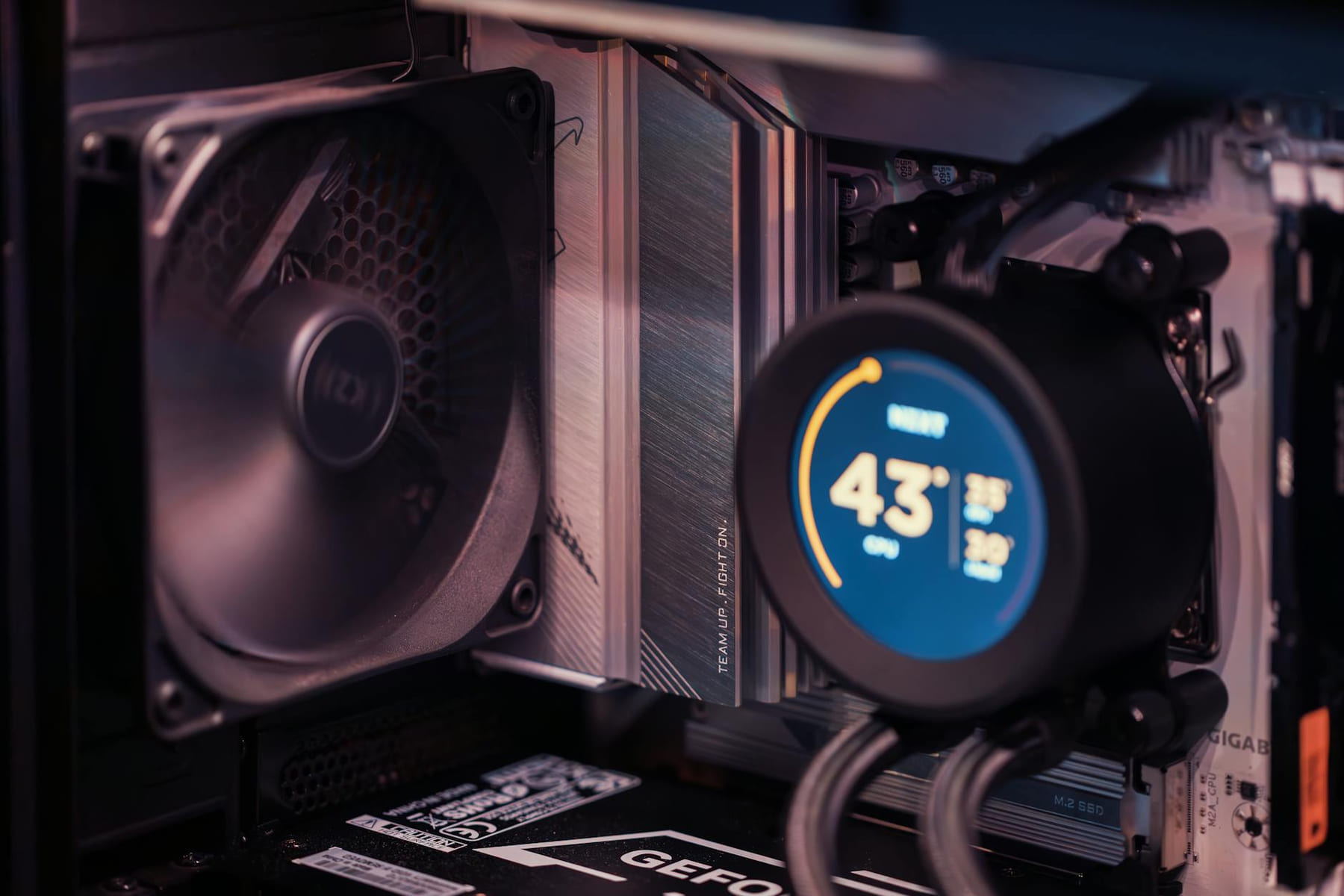
April 1, 2026 - Welcome back to Frame Rate Vault! As PC enthusiasts, we all understand the importance of maintaining optimal performance. And let’s be honest, a scorching hot CPU or GPU is a guaranteed performance killer - and a major source of frustration. Today, we’re diving deep into the world of PC cooling solutions, exploring both the tried-and-true methods of air cooling and the increasingly popular realm of liquid cooling. Whether you’re building a brand-new rig or upgrading an existing one, understanding your cooling options is crucial for maximizing your system’s potential and ensuring it runs smoothly for years to come.
Understanding the Basics: Air vs. Liquid (Keeping Your PC)
For decades, air cooling has been the mainstay of PC cooling. It’s a relatively simple and affordable approach, utilizing heatsinks and fans to dissipate heat. However, as CPUs and GPUs become increasingly powerful, relying solely on air can sometimes struggle to keep up. Liquid cooling, particularly all-in-one (AIO) coolers and custom loops, offers a more aggressive and often more effective solution. Let’s break down the key components involved in each:
- Reservoir: This is the holding tank for your coolant. It’s designed to provide a sufficient volume of liquid to prime the cooling loop and maintain consistent coolant flow. It also allows you to easily top off the coolant as needed - a simple process that’s far less involved than dealing with a leaking custom loop.
- Radiator: The radiator is where the magic happens. It’s a heat exchanger, typically constructed from aluminum or copper, designed to dissipate heat into the surrounding air. Larger radiators generally offer better cooling performance, but also require more space in your case.
- Tubing: These are the flexible or rigid pipes that connect all the components - the reservoir, radiator, blocks, and pump. Choosing the right tubing material (flexible PVC, flexible TPU, or rigid copper) can impact both aesthetics and performance.
- Blocks: These are the heat transfer interfaces that sit directly on your CPU and GPU. They’re specifically designed to efficiently transfer heat from these critical components to the coolant. Custom loops offer superior cooling performance compared to AIOs, especially when paired with high-performance components. They also provide unparalleled customization options - you can choose your own tubing color, fittings, and even add custom lighting. But they’re more complex to install and maintain.
A dual-loop configuration - one for the CPU and one for the GPU - can further improve cooling performance, but it also adds to the complexity and cost. This is because each component generates heat at different rates, and a dedicated loop for each maximizes cooling efficiency. It’s a significant investment, but for enthusiasts pushing the limits of their hardware, it’s a worthwhile consideration.
Delving Deeper: Custom Loops - A World of Possibility
Custom loops represent the pinnacle of PC cooling customization. They allow for complete control over every aspect of the cooling system, from the coolant type to the tubing material and fittings. This level of control comes at a cost - both in terms of time and money. Building a custom loop requires a significant investment in components and a considerable amount of technical skill. However, the performance gains and aesthetic customization are unmatched. Considerations include pump selection (D5 and D12 pumps are popular choices), coolant type (distilled water with additives is standard, but specialized coolants offer enhanced thermal performance and corrosion protection), and fitting types (compression fittings are highly recommended for reliability).
Keeping It Cool: Thermal Paste & Monitoring
Even the most sophisticated cooler won’t perform optimally if the thermal interface material (TIM) - that’s thermal paste - isn’t applied correctly. Thermal paste fills the microscopic imperfections on the CPU and cooler surfaces, ensuring efficient heat transfer. A thin, even layer of thermal paste is crucial. Avoid applying too much - a small dot in the center of the CPU is often sufficient; more isn't always better. Popular brands like Thermal Grizzly, Arctic, and Noctua all offer excellent TIMs, each with slightly different properties and performance characteristics. Experimentation can help you find the best paste for your specific setup.
Monitoring your CPU temperature is essential. Software like HWMonitor, Corsair iCUE, and NZXT CAM provide detailed temperature readings and allow you to track your system’s performance. These tools can alert you to potential overheating issues before they cause damage. Hardware temperature probes offer even more granular monitoring, allowing you to pinpoint potential overheating issues. For example, you might notice a significant temperature spike during a demanding gaming session, indicating a need for improved cooling.
The Rise of AIO Liquid Coolers
In 2026, AIO liquid coolers have become the dominant force in the PC cooling market. They offer a significant performance boost over traditional air coolers, and they’re considerably easier to install and maintain. AIOs typically consist of a pump, radiator, and water block, all integrated into a single unit. They’re available in a wide range of sizes and configurations, making it easy to find an AIO that fits your case and budget. Brands like Corsair, NZXT, and Arctic offer a diverse selection of AIOs, each with its own strengths and weaknesses. Consider factors like radiator size, pump performance, and noise levels when making your choice.
Start with what you will actually use
With Keeping Your PC Cool: Air & Liquid Options, the first question is usually not which option looks best on paper. It is which part will make day-to-day life easier, smoother, or cheaper once the novelty wears off.
A lot of options sound great until you picture them in a normal week. If the setup is fussy, the routine is easy to forget, or the maintenance is annoying, the appeal fades quickly.
There is also value in keeping one part of the process deliberately simple. Readers often do better when they identify the one decision that carries the most weight and make that choice carefully before they chase smaller optimizations. That keeps momentum steady and usually prevents the topic from turning into clutter.
What tends to get overlooked
Tradeoffs are normal here. Cost, convenience, upkeep, and flexibility do not always line up neatly, so it helps to decide which tradeoff matters least to you before you commit.
This usually gets easier once you make a short list of priorities. A tighter list tends to produce better decisions than trying to solve every possible problem at once.
Another useful filter is asking what you would still recommend if the budget got tighter, the schedule got busier, or the setup had to be easier for someone else to manage. The answers to that question usually reveal which advice is durable and which advice only works under ideal conditions.
Keep This Practical
If the goal is smoother gaming, focus on the component or setting that delivers a clear quality-of-life improvement first. The rest of the build gets easier once the biggest friction point is handled.
Tools Worth A Look
These picks are the closest fit if you are trying to improve a setup without wasting money on upgrades you will not actually feel.
- RedThunder One Handed Gaming Keyboard RGB Backlit 35 Keys Portable Mini Gaming Keypad Ergonomic Game Controller for PC GamerDeco Gear Gaming Accessory Bundle - Mechanical 18-Mode 104 Key RGB KeyboardRedThunder K10 Wired Gaming Keyboard and Mouse and Wrist Rest Combo, RGB Backlit, Mechanical Feel Anti-ghosting KeyboardRazer BlackShark V3 X HyperSpeed Wireless Gaming Headset for PCSTGAubron Gaming PC Desktop Computer, Intel i7 Xeon E5 3.0GHz, Radeon RX 550 4G, 16GB RAM, 512GB SSD, WiFi 6, BT 5.0, RGB Fan x3, Windows 11 Home
Some of the links on this page are Amazon affiliate links, which means I may earn a small commission if you make a purchase through them. As an Amazon Associate, I earn from qualifying purchases.
Related ReadingMore from Frame Rate Vault
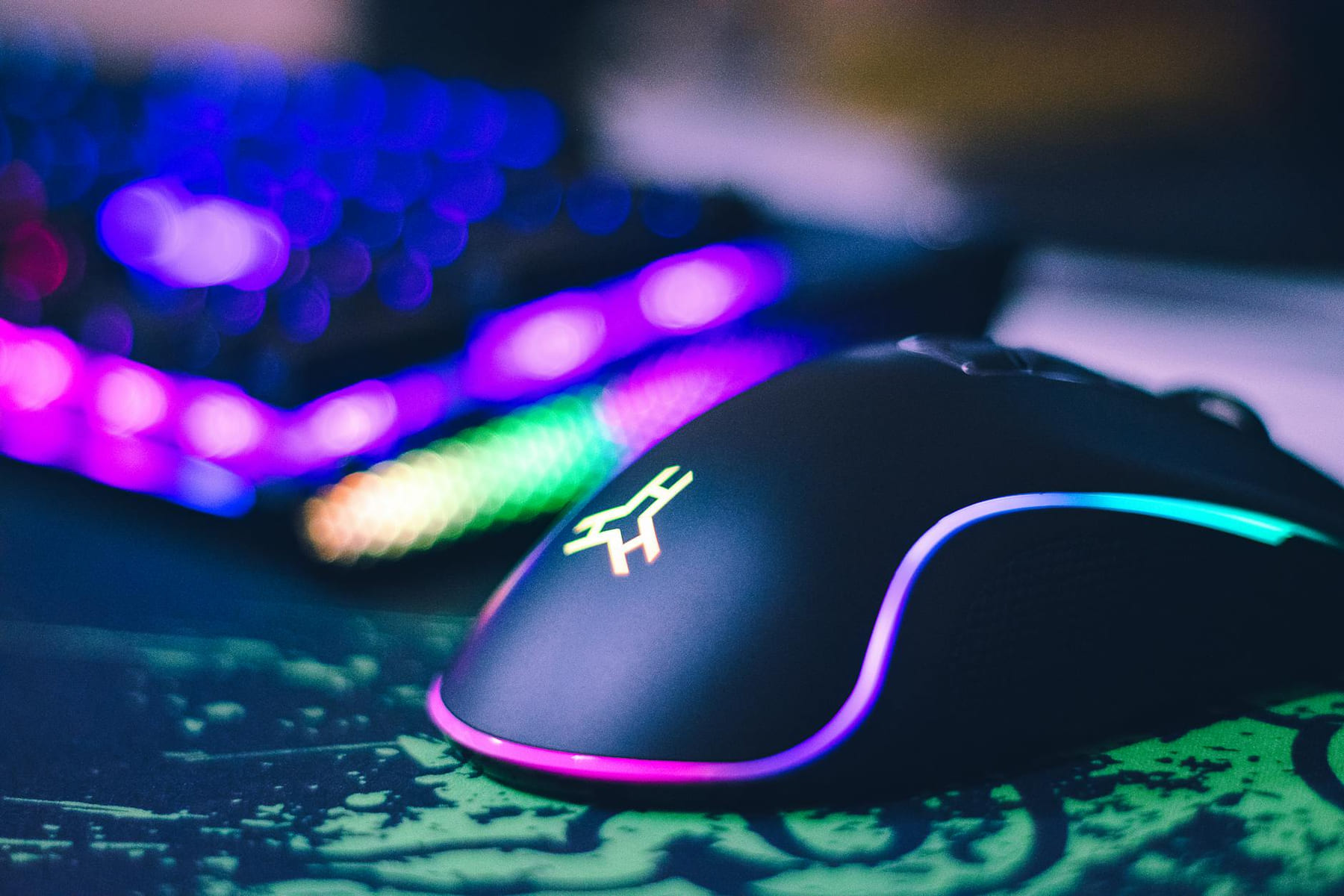
Level Up Your Setup: Gaming Peripherals
make a real difference when they improve comfort, control, and audio clarity. Here is how to think through mice, keyboards, and headsets without getting distr...
Ultrawide Monitor Choices for Smooth Gaming
: ------------------, ----------------, ----------------, ----------------. Contrast: Infinite, Excellent, Very
Ultrawide Monitor Mistakes: Gaming Reviews
Gaming Monitor Reviews (Ultrawide) Mistakes to Avoid - Level Up Your Setup 1. Resolution: Don’t Just Go Biggest (Ultrawide Monitor) Ultrawide Monitor can be easier.