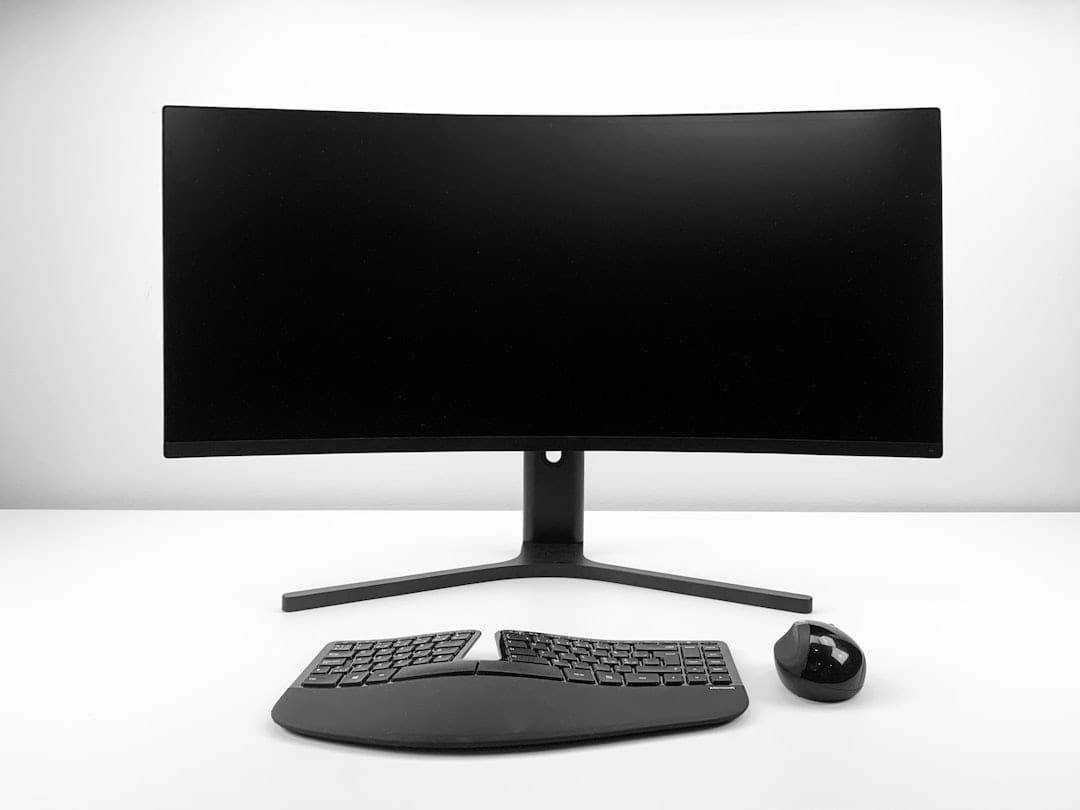
So, you’re thinking about taking the plunge into the world of ultrawide monitors? Fantastic! They’ve exploded in popularity over the last few years, and for good reason. The expansive screen real estate offers a seriously immersive gaming experience, boosts productivity, and can even make multitasking a breeze. But with so many options available, navigating the market can feel overwhelming, especially if you're a beginner. This guide will break down everything you need to know to choose the perfect ultrawide monitor for your setup and budget, covering key features, setup tips, and common pitfalls.
Understanding the Essentials: Key Monitor Specs (Ultrawide Monitors)
Before diving into specific models, let’s talk about the core specifications that will determine your gaming experience. Don’t just look at the price tag - understanding these features is crucial.
- Refresh Rate: This is how many times the monitor updates the image per second, measured in Hertz (Hz). For gaming, a minimum of 144Hz is *highly* recommended. Higher refresh rates (165Hz, 240Hz, or even 360Hz) provide smoother motion, reduce motion blur, and most importantly, minimize input lag - that slight delay between your actions and what you see on screen. The lower the input lag, the more responsive your gameplay feels.
- Response Time: Measured in milliseconds (ms), this indicates how quickly a pixel can change color. A lower response time is *essential* for gaming. Aim for 1ms or lower to minimize ghosting and blur, particularly noticeable in fast-paced games like first-person shooters or racing games. Anything above 5ms can be distracting and negatively impact visual clarity.
- Panel Type: The type of panel significantly impacts color accuracy, viewing angles, and contrast.
- IPS (In-Plane Switching): Generally considered the best choice for gaming, IPS panels offer the most accurate colors and the widest viewing angles. This means colors remain consistent even when viewed from the side.
- TN (Twisted Nematic): TN panels are typically the fastest, boasting the lowest response times. However, they often sacrifice color accuracy and viewing angles. They’re usually a good option if speed is your absolute top priority and color isn’t a major concern.
- VA (Vertical Alignment): VA panels offer a good balance between color and contrast. They typically have deeper blacks than IPS panels, but can sometimes suffer from “black smearing” - a noticeable trail of light when fast-moving objects move across the screen.
- Adaptive Sync: This technology synchronizes the monitor’s refresh rate with your graphics card’s frame rate, eliminating screen tearing and stuttering.
- G-Sync (NVIDIA): Requires an NVIDIA graphics card.
- FreeSync (AMD): Requires an AMD graphics card.
Crucially, ensure the monitor is compatible with your graphics card. Using Adaptive Sync with the wrong card will result in no benefit and potentially issues.
- HDR Support: High Dynamic Range (HDR) can dramatically improve the contrast and color range, making your games look more vibrant and realistic.
- HDR10: The most common HDR standard.
- Dolby Vision: A more advanced HDR format that offers dynamic metadata, allowing for scene-by-scene optimization.
However, not all HDR monitors are created equal. Read reviews carefully to ensure you’re getting a true HDR experience - look for high peak brightness and a wide color gamut.
- Connectivity: Make sure the monitor has at least one HDMI 2.1 and one DisplayPort 1.4 connection. These are the current standards for modern gaming and support the bandwidth needed for high-resolution, high-refresh-rate gaming.
Budget Considerations & Recommended Monitors (2026)
Ultrawide monitors come in a wide range of prices. Let’s break down some recommendations based on budget tiers:
- Entry-Level ($300 - $500): You can find decent 3440x1440 ultrawides in this range. Expect a 144Hz refresh rate and a 1ms response time. Good options might include the Gigabyte M34WQ or the LG 34WN750-B.
- Mid-Range ($500 - $800): This is where you’ll start to see better color accuracy, HDR performance, and potentially higher refresh rates (165Hz+). Consider the Samsung Odyssey G7 or the ASUS VP27AQN (27” ultrawide, good for smaller desks).
- High-End ($800+): These monitors offer top-tier features like 5120x1440 resolution, high refresh rates (165Hz+), and excellent HDR capabilities. You’ll find models like the Alienware AW3423DW or the LG 34GP83A-B in this category.
Important Note: Prices fluctuate, so always check current listings. Also, remember to factor in the cost of a compatible graphics card if you’re upgrading.
Setup and Calibration & Common Issues
Getting your ultrawide monitor up and running is usually pretty straightforward. Start by plugging it in, connecting it to your PC, and adjusting the screen size and position in your operating system’s display settings. Most operating systems have excellent support for ultrawide monitors, automatically stretching the image to fill the screen.
Experiment with the monitor’s on-screen display (OSD) to adjust brightness, contrast, and color temperature to your liking. Don’t be afraid to start with a warmer color temperature - it can be easier on the eyes during long gaming sessions. A lot of monitors have preset color profiles that can be a good starting point.
Common Issues and Solutions:
- “Fish-Eye” Distortion: This can appear as a warped or bulging image. It’s usually caused by incorrect settings. Try adjusting the monitor’s crosshair or lens shift settings to correct it. Also, check your operating system’s scaling settings.
- HDR Issues: If HDR isn’t working correctly, ensure your graphics card drivers are up to date and that HDR is enabled in both Windows and your game settings. Also, check the monitor's HDR settings within the OSD.
- Input Lag: If you’re experiencing noticeable input lag, double-check that Adaptive Sync is enabled and properly configured.
Advanced Considerations: Ultrawide Gaming Techniques
Once you have your ultrawide monitor set up, consider how you're using it in games. Many games don't automatically scale well to ultrawide resolutions, so you might need to adjust in-game settings. Experiment with different FOV (Field of View) settings to find a balance between immersion and peripheral awareness. Also, consider using windowed or borderless windowed mode for gaming - it can sometimes reduce input lag.
Conclusion
Ultrawide monitors offer a truly immersive gaming experience, and they’ve become a fantastic tool for multitasking and productivity. They aren’t a magic bullet - you’ll still need a capable PC to drive them properly - but if you’re looking to elevate your gaming setup, it’s definitely worth considering. Take the time to research your options, think about your budget, and find a monitor that fits your specific needs. Ready to take the leap? Check out some of the recommended monitors linked below!
Keep This Practical
If the goal is smoother gaming, focus on the component or setting that delivers a clear quality-of-life improvement first. The rest of the build gets easier once the biggest friction point is handled.
Tools Worth A Look
These picks are the closest fit if you are trying to improve a setup without wasting money on upgrades you will not actually feel.
- GMKtec K15 AI Mini PC Oculink Intel Ultra 5 125U 32GB DDR5 512GB SSD, Desktop Computer AI BoostRazer Tartarus V2 Gaming Keypad: Mecha Membrane Key SwitchesWebcam Streaming Kit with USB RGB Microphone & LED Light – 1080P 30FPS Streaming Camera Bundle for Twitch, YouTube, Podcasting, WFH – PC & MacGaming PC Desktop Computer, AMD Ryzen 5 5600GT 16GB RAM 1TB NVMe SSD, Prebuilt Tower PC with Integrated Graphics, ATX 3.0 Power, RGB Cooling Fans, Windows 11Quell Pro 75% Wireless Mechanical Gaming Keyboard – Hot Swappable Pre-Lubed Switches, Creamy Typing Sound, Smart Screen & Control Knob, RGB Backlit, PBT Key
Some of the links on this page are Amazon affiliate links, which means I may earn a small commission if you make a purchase through them. As an Amazon Associate, I earn from qualifying purchases.
Related ReadingMore from Frame Rate Vault
Ultrawide Monitors: Your Gaming Review Hub
Gaming Monitor Reviews (Ultrawide) Guide - Frame Rate Vault Ultrawide Monitors can be easier to approach when you start with a few practical basics. So, you’re.
Ultrawide Monitor Choices for Smooth Gaming
: ------------------, ----------------, ----------------, ----------------. Contrast: Infinite, Excellent, Very
Ultrawide Monitor Mistakes: Gaming Reviews
Gaming Monitor Reviews (Ultrawide) Mistakes to Avoid - Level Up Your Setup 1. Resolution: Don’t Just Go Biggest (Ultrawide Monitor) Ultrawide Monitor can be easier.