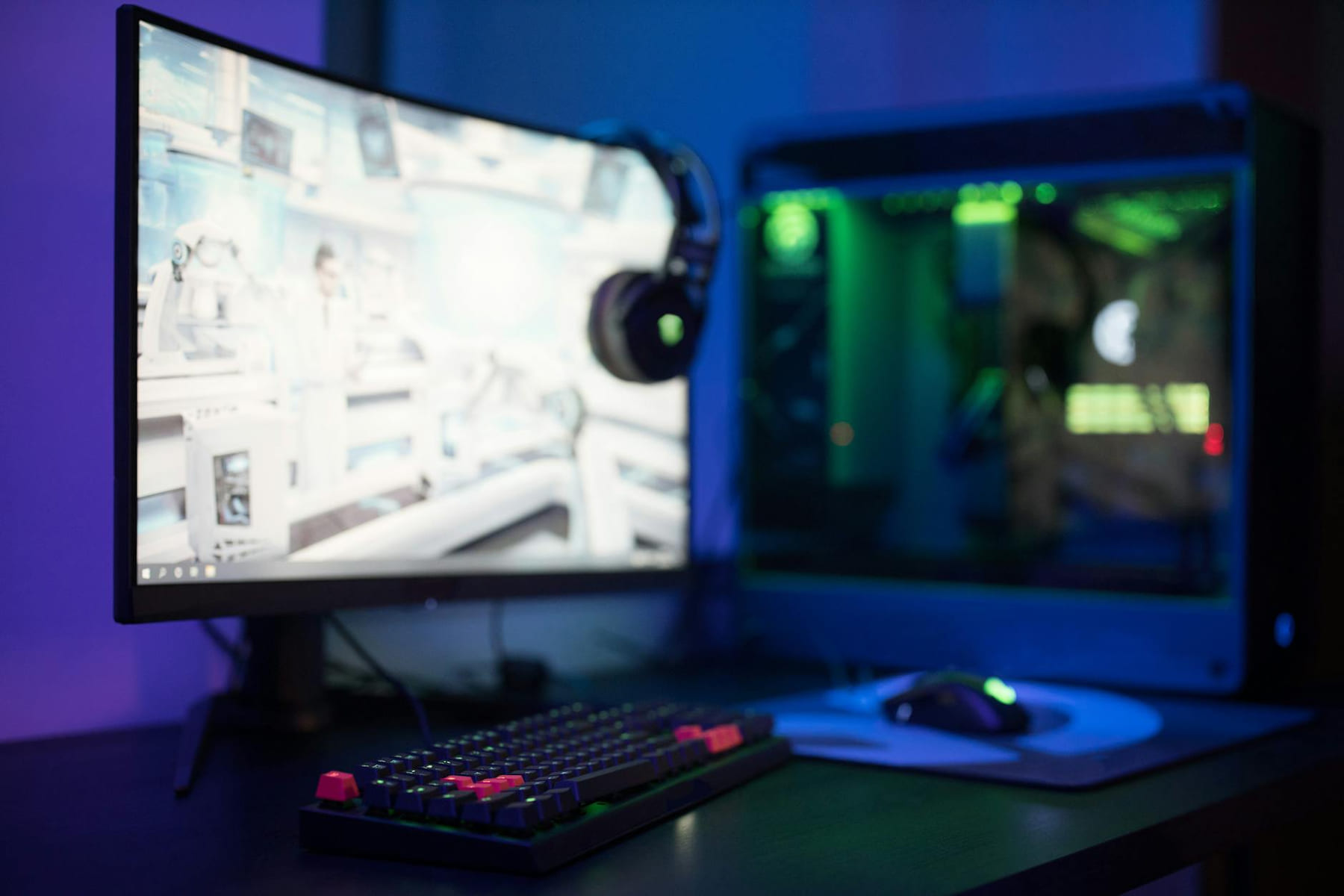
So, you’ve finally done it. You’ve meticulously planned, sourced the best components, and spent countless hours assembling your dream custom PC. The anticipation is palpable, the RGB is dazzling, and you’re ready to unleash a torrent of graphical horsepower. But then… the games don’t run as smoothly as you hoped. Or worse, they don’t run at all. Don’t panic! Custom PC building is an incredibly rewarding experience, but it’s also a learning curve. Troubleshooting is a huge part of the process, and this guide is here to equip you with the knowledge and practical steps to diagnose and fix common issues. Let’s dive in.
The Initial Boot - Is It Even Starting?
1. Overheating
Monitor your CPU and GPU temperatures using software like HWMonitor or MSI Afterburner. If temperatures are consistently exceeding recommended limits, you need to address the cooling. Check for dust buildup in your case and cooler. Consider reapplying thermal paste to the CPU and GPU. Ensure your case has adequate airflow. Upgrading your cooler might be necessary for high-end builds.
2. RAM Problems
Use the Windows Memory Diagnostic tool to test your RAM for errors. Also, run a memory benchmark like Memtest86+ to thoroughly test the stability of your RAM. If you suspect a faulty RAM stick, replace it.
3. CPU Bottleneck
Determine if your CPU is struggling to keep up with your GPU. Monitor CPU utilization while gaming. If your CPU is consistently at 100% usage, it’s likely a bottleneck. Upgrading your CPU might be necessary. Also, ensure your CPU is overclocked properly (if you’ve chosen to do so) - unstable overclocks can cause crashes and instability.
4. Storage Issues
Slow storage can significantly impact loading times and overall performance. Ensure your operating system and games are installed on an SSD (Solid State Drive) for the best performance. Check the SMART status of your hard drives to identify potential failures. Defragment your hard drives regularly (though this is less critical with SSDs).
5. GPU Limitations
Realistically, your GPU is often the limiting factor in modern gaming. Ensure your GPU drivers are up to date. Lowering graphics settings can help alleviate performance issues. Consider upgrading your GPU if you're consistently struggling to achieve desired frame rates.
Advanced Troubleshooting - When Nothing Else Works
If you’ve exhausted the above steps and are still experiencing issues, it’s time to consider more advanced troubleshooting techniques:
- Stress Testing: Use stress testing tools like Prime95 (CPU) and FurMark (GPU) to push your hardware to its limits and identify potential instability.
- BIOS/UEFI Updates: Updating your motherboard’s BIOS/UEFI can sometimes resolve compatibility issues and improve performance. However, this is a risky process - proceed with caution and follow the manufacturer’s instructions carefully.
- Component Compatibility: Double-check that all your components are compatible with each other. Consult the motherboard’s QVL (Qualified Vendor List) to ensure your RAM is compatible.
Building a custom PC is a journey, not a destination. Don’t be discouraged by troubleshooting challenges. With patience, persistence, and the knowledge contained within this guide, you’ll be enjoying smooth, high-performance gaming in no time. Remember to document your steps and findings - it will help you (and others) diagnose problems more effectively in the future.
Focus on the part that solves the problem
In a topic like PC hardware and gaming gear, the strongest starting point is usually the one you will notice and use right away. That is often more helpful than adding extra features too early.
Before spending more, it is worth checking the setup, upkeep, and learning curve. Small hassles matter here because they are usually what decide whether something stays useful or gets ignored.
It is easy to underestimate how much clarity comes from removing one unnecessary layer. In practice, trimming one complication often does more for Frame Rate Frustrations? Let’s Fix It than adding one more feature, one more product, or one more clever workaround.
Where extra features get in the way
Another easy trap is copying a setup that made sense for someone with a different routine, budget, or tolerance for maintenance. In PC hardware and gaming gear, that mismatch is often what makes a promising idea feel frustrating later.
A lot of options sound great until you picture them in a normal week. If the setup is fussy, the routine is easy to forget, or the maintenance is annoying, the appeal fades quickly.
There is also value in keeping one part of the process deliberately simple. Readers often do better when they identify the one decision that carries the most weight and make that choice carefully before they chase smaller optimizations. That keeps momentum steady and usually prevents the topic from turning into clutter.
What makes the choice hold up
A better approach is to break Frame Rate Frustrations? Let’s Fix It into smaller decisions and solve the highest-friction part first. Testing one practical change usually teaches more than trying to perfect everything in a single pass.
Leave a little room to adjust as you go. A setup that works in one budget range, season, or routine might need a small change later, and that is usually normal rather than a sign you got it wrong.
If this topic still feels crowded or overcomplicated, that is usually a sign to narrow the decision, not a sign that you need more noise. One careful adjustment, followed by honest observation, tends to teach more than another round of abstract tips.
How to keep the routine manageable
A grounded next step is usually better than a dramatic one. Pick one realistic change, see how it works in normal life, and let that result guide the next decision.
The version that holds up best is usually the one you can live with on an ordinary day. That often matters more than the version that only feels good when you have extra time, energy, or money.
That is why the best next step is often a modest one with a clear upside. You want something specific enough to act on, flexible enough to adjust, and practical enough that you would still recommend it after the first burst of enthusiasm fades.
What matters more than the sales pitch
Another useful filter is asking what you would still recommend if the budget got tighter, the schedule got busier, or the setup had to be easier for someone else to manage. The answers to that question usually reveal which advice is durable and which advice only works under ideal conditions.
If you want Frame Rate Frustrations? Let’s Fix It to hold up over time, choose the version you can actually maintain. That can mean spending less, leaving out an attractive extra, or simplifying the setup so it fits ordinary life.
You do not need the flashiest answer here. You need the one that fits your space, budget, and routine well enough that you will still feel good about it after the first week.
A practical way to move forward
Readers usually get better results when they treat advice as something to test and refine, not something to obey perfectly. That mindset creates room for real judgment, which is often the difference between content that sounds smart and guidance that is actually useful.
When you are deciding what to do next, aim for the option that reduces friction and gives you a clearer read on what matters most. That is usually how Frame Rate Frustrations? Let’s Fix It becomes more useful instead of more complicated.
In a topic like PC hardware and gaming gear, manageable almost always beats impressive. If something is simple enough to keep using, it is usually doing more real work for you.
Keep This Practical
PC upgrades pay off most when they fix the bottleneck you actually feel in play. Start with the part that improves performance, cooling, or comfort in the way you notice every session.
Tools Worth A Look
If the article helped you narrow the hardware decision, the recommendations below are the most relevant next step.
- FIFINE AmpliGame Stream Controller with 15 Macro Keys, Streaming KeyboardSTGAubron Gaming PC Desktop Computer, Intel i7 Xeon E5 3.0GHz, Radeon RX 550 4G, 16GB RAM, 512GB SSD, WiFi 6, BT 5.0, RGB Fan x3, Windows 11 HomeNBCP F10 PC Racing Wheel-1080 Degree Magnetic Induction Gaming Steering Wheel with 6-Speed H-Pattern Shifter and Linear Pedal,Sensitivity Adjustment,Angle Locking,Dual Motor Vibration-Steering WheelMarada Modular Flight Racing Simulator Cockpit, Both the Flight Sim Cockpit and The Racing Sim Cockpit, Fit for Logitech,for ThrustmasterJAKEMY 180 in 1 Precision Screwdriver Set, Computer Screwdriver Kit, Professional Magnetic Repair Tool Kit
Some of the links on this page are Amazon affiliate links, which means I may earn a small commission if you make a purchase through them. As an Amazon Associate, I earn from qualifying purchases.
Related ReadingMore from Frame Rate Vault

Building Your First PC: A Gentle Start
Building Your First PC: A Gentle Start offers a clearer, more practical take on pc building so readers can make the next move with less confusion and more.
Level Up Your Setup: Gaming Peripherals
make a real difference when they improve comfort, control, and audio clarity. Here is how to think through mice, keyboards, and headsets without getting distr...
Ultrawide Monitor Choices for Smooth Gaming
: ------------------, ----------------, ----------------, ----------------. Contrast: Infinite, Excellent, Very